Lead card anatomy
Every number, badge and button on a lead card, explained.
Tap a number on the card or in the list to match them up. Example data.
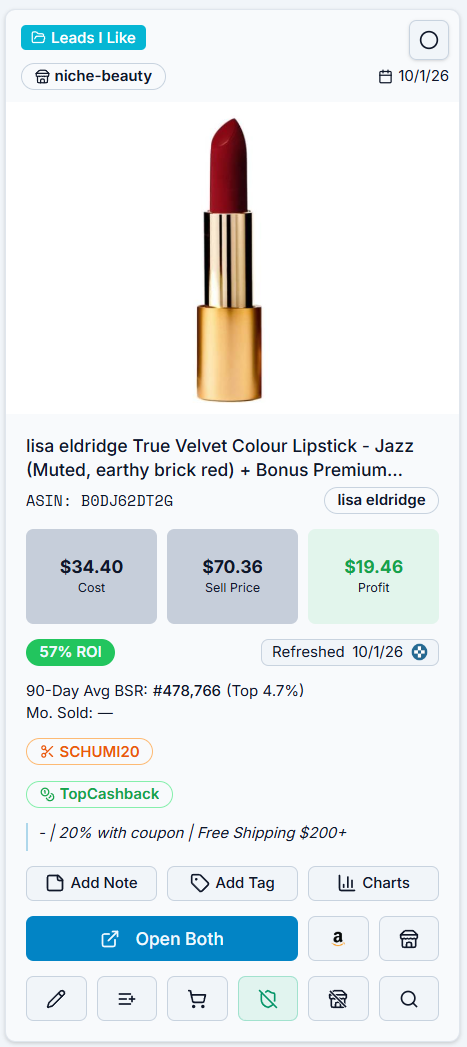
Look up cashback offers
Open Cashback on a Dashboard lead to look up offers for its source retailer. If the lead has more than one retailer, choose one first. Loading the Dashboard or changing its filters does not start a cashback lookup.
With a compatible ASIN.so extension installed, the lookup runs on your computer and can reuse offers the extension has already cached. Refresh requests fresh offers. Without a compatible extension, ASIN.so uses its server lookup. If a lookup through the extension fails, use Refresh to try again; it does not automatically repeat that lookup on the server.
The extension continues checking cashback when you visit a retailer site, as before. Check the cashback provider's terms before purchasing.
Compare other leads for the same ASIN
In Tile View, a card with more than one available lead for its ASIN has a small carousel button on the right of its image. Its icon looks like overlapping cards. Click it to show the next lead; after the last one, it returns to the original. The number above it, such as 1/3, shows your place in that card's group. The original filtered lead is always 1.
| Button and number color | What is showing |
|---|---|
| Neutral | The original lead that matched your Dashboard results. |
| Violet | Another lead for that ASIN that also matches your current filters. |
| Amber | Another available lead for that ASIN that does not match your current filters. |
The badge contains numbers only. Hover or focus it for an explanation, including why an amber lead is outside your filters. Both tooltips appear below their controls. Clicking the carousel hides its button tooltip until you move the pointer away and back.
Cycling compares leads already available to your account, including ones outside the current list, date or other filters. It does not add those alternatives to the filtered results. Look at the displayed list badge, date, source, cost and notes before acting.
Actions on the card use the lead you are looking at: its review, notes, tags, source link, edit/delete, copy-to-list and To Buy/Bought actions. Brand and supplier controls still apply to the displayed brand or supplier. The selection checkbox stays with the original filtered lead, as do bulk actions and CSV exports. Cycling never silently swaps a different record into your export. See Select and bulk actions.
Colors and badges
| You see | It means |
|---|---|
| Restricted | The gate check says you cannot sell this ASIN. |
| Approval Required | Amazon wants approval before you can sell it. |
| 100+ Units: Brand | You marked this brand gated yourself, with the unit level. |
| Avoided: store.com | You marked this supplier avoided. |
| Meltable | Heat-sensitive. Amazon only accepts it part of the year. |
| Greyed-out card | Gated, avoided supplier or avoided brand, with grey-out turned on in that filter. |
| Green-shaded card | You marked it reviewed. |
| Red profit or ROI | Below the minimums in Settings → Dashboard Preferences. |
| Green ↑ or red ↓ with "was" | How price, profit or ROI changed since the lead was imported. |
| Red brand chip | The brand is listed as Generic. |
| Green cart button | You have bought this ASIN before. Hover for the date. |
| Green shield button | Your gate check says you are ungated for this ASIN. |